DojoExpert mobile app version 6.0 and later supports offline attendance tracking. This is useful if your school has no internet connection or a slow connection. Offline mode supports attendance lists and QR code scanning, but not kiosk mode. Records are saved on your device until you upload them when you are back online. Here is how to use it:
Preload lists
Before using attendance lists offline, connect to the internet and preload them onto your device. Go to "attendance", select a group, and click "load list". You do not need to click "save". Repeat for each group you want to track offline; the selected date does not matter at this stage.

Enter offline mode
The lists are now stored on your device for offline use. Log out, disconnect from the internet, and try to log in again. The app will notify you that it is entering offline mode:

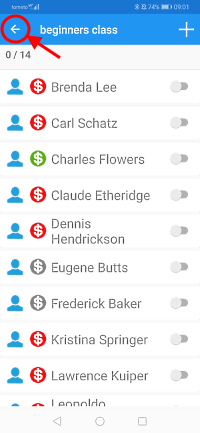
In offline mode, the main menu initially shows only "attendance". Select a group and date, mark attendance, and click "save" to store it on your device. The "Offline data" option then lets you review or edit those records:


Uploading data
You can work offline for several days. To upload your records, connect to the internet and log in again. Select "Offline data" in the main menu, then "upload all", or select a class and click "upload" to upload just its records:


Scan QR codes in offline mode
QR code scanning works offline without preloading lists. Each scan is saved in "Offline data" for later upload, and the student sees a generic welcome message with their UID instead of their name. When you are back online, upload the scans in the same way as attendance lists. Each code is sent to the server separately, and the returned welcome message is displayed for reference.